
How to Set Up Email on iPhone, Outlook, and Android: A Step by Step Guide
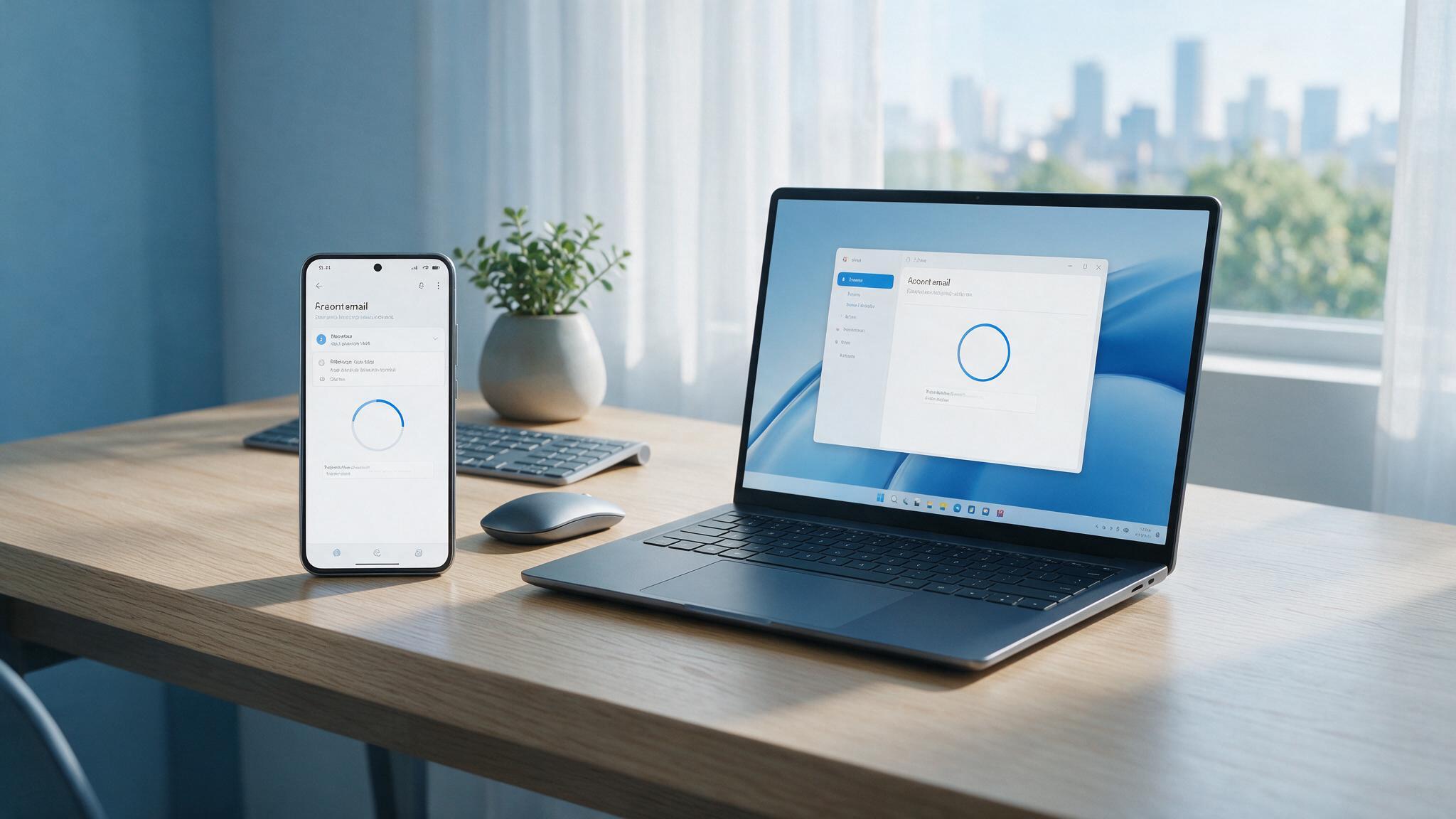
Once you have professional mailboxes on your domain, the next job is to set up email client access on every device your team uses. Reading mail only in a browser is fine to start, but you will want your inbox on your iPhone, in Outlook on your laptop, and on your Android phone so you can respond to a Dubai client from anywhere. This guide walks through each platform step by step, with the settings UAE business owners need.
Before you begin: gather your settings
Every email client needs the same handful of details, so collect them once and setup becomes easy everywhere. Your email host provides these in your account area.
- Your full email address and password.
- Incoming server using IMAP, which keeps your mail in sync across all devices, usually with a secure port.
- Outgoing server using SMTP, which sends your mail, also on a secure port.
A quick note on IMAP versus POP. Choose IMAP. It keeps your mail on the server so every device sees the same inbox, read status, and folders. POP downloads and often removes mail from the server, which causes chaos when you use more than one device. For a modern business, IMAP is the right choice almost every time.
Setting up email on iPhone
The iPhone Mail app handles most accounts smoothly. Follow these steps.
- Open Settings, then scroll to Mail and tap it.
- Tap Accounts, then Add Account, then choose Other at the bottom.
- Tap Add Mail Account and enter your name, your full email address, your password, and a description such as your company name.
- When asked, choose IMAP at the top.
- Enter your host's incoming and outgoing server names in the fields provided, using your full email address as the username on both.
- Tap Next, let the phone verify the settings, then tap Save.
Your mail will begin syncing. If verification fails, double check that you used your full address as the username and that the server names match your host's details exactly.
Setting up email in Outlook
Outlook on a Windows or Mac laptop is a favourite for UAE offices. The modern versions make setup quick.
- Open Outlook and go to File, then Add Account. On newer versions you may simply be prompted on first launch.
- Type your full email address and click Connect.
- If Outlook does not detect the settings automatically, choose IMAP as the account type.
- Enter your incoming and outgoing server names, the secure ports your host lists, and select SSL or TLS encryption.
- Enter your password and click Connect or Done.
Outlook will download your mail and folders. If it struggles to auto detect, always fall back to the manual IMAP option and enter the server details your host provides. This bypasses the guessing and connects reliably.
When any client fails to connect automatically, switch to manual IMAP setup and enter your host's exact server names. It solves most problems.
Setting up email on Android
Android setup varies a little by brand, but the built in Gmail app or your device's Email app both work with business email. Using the Gmail app as the example.
- Open the Gmail app, tap your profile icon, then Add another account.
- Choose Other as the account type, not Google.
- Enter your full business email address and tap Next.
- Select Personal IMAP when prompted.
- Enter your password, then on the following screens enter your incoming and outgoing server names, using your full email address as the username and choosing SSL or TLS security.
- Confirm and let the account sync.
If your phone uses Samsung's own Email app or another brand's app, the flow is similar. Look for a manual or Other option, pick IMAP, and enter the same server details.
Test that everything works
After setup on each device, run a quick test. Send an email from the device to another address you control, and reply back to confirm two way flow. Check that a message you read on your phone also shows as read on your laptop, which proves IMAP is syncing correctly. If sending fails but receiving works, the problem is almost always the outgoing SMTP settings, so revisit the outgoing server name, port, and encryption.
Common setup problems and quick fixes
- Cannot connect at all. Confirm you typed your full email address as the username, not just the part before the at sign.
- Receiving but not sending. Check the outgoing SMTP server, ensure authentication is enabled, and use the secure port your host specifies.
- Password rejected. Retype the password carefully, and if your host uses app specific passwords or two factor authentication, generate the correct credential.
- Mail out of sync between devices. Make sure every device is set to IMAP, not POP.
Frequently asked questions
Should I choose IMAP or POP for my business email?
Choose IMAP. It keeps your mail synchronised across your phone, laptop, and webmail, so you see the same inbox everywhere. POP downloads mail to one device and is a poor fit for anyone using more than one device.
Where do I find my server settings?
Your email host provides the incoming and outgoing server names, ports, and encryption in your account area or setup guide. If you cannot find them, contact your host's support for the exact values.
Can I have the same business email on my phone and laptop at once?
Yes, and you should. With IMAP you can add the account to as many devices as you like, and they all stay in sync. This lets you reply to clients whether you are at your desk or out meeting them.
Get email that works on every device
Professional email is only useful when it reaches you wherever you are, and reliable server settings make that effortless. Dirham A Day gives UAE businesses clear setup guides, secure IMAP and SMTP details, and local support to get your team connected on iPhone, Outlook, and Android. Set up your branded email today at dirhamaday.ae/hosting.
Ready to get online with a UAE host?
Fast local servers, free SSL, daily backups and support that answers. Set up in minutes.
See hosting plans